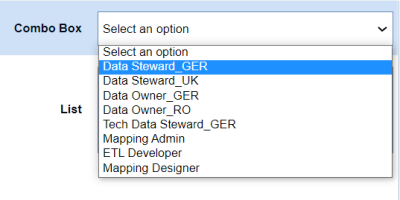
When you configure extended properties using UI elements, such as combo box, radio button, and list, you also need to configure their option values. You can use the default connector to import option values from an MS Excel file or enter them manually.
To configure option values using the default connector, follow these steps:
- In the Configure Form section, click the required UI element.
- In the Properties section, click Configure.
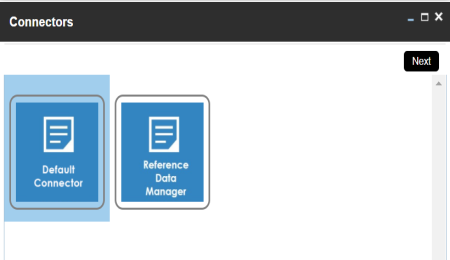
- On the Connectors page, ensure that the Default Connector option is selected. Then, click Next.
- Use the following options:
- Add
- Use this option to enter text and value manually.
- Import Excel
- Use this option to import options from MS Excel files.
- After configuring option values, click Save.
Ensure that you are in edit mode.
The Connectors page appears.
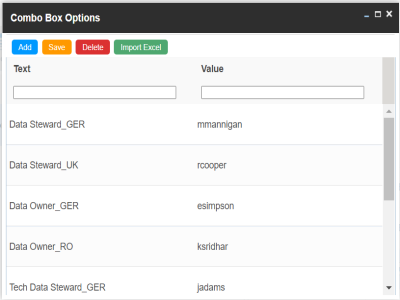
The <UI_Element> Options page appears. For example, if the UI element is Combo Box, the Combo Box Options page appears.
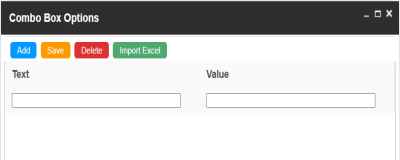
To add option values manually, follow these steps:
- Click Add.
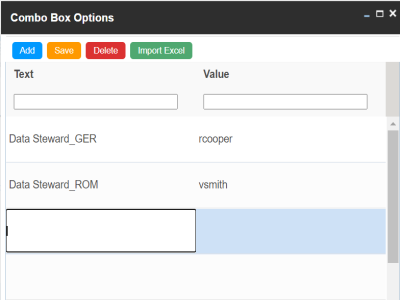
- Enter values in the Text and Value fields.
- Click Save.
The Text corresponds to options whereas the Value corresponds to underlying value of an option. You can add as many values as needed.
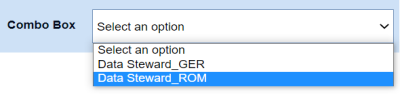
The option values appear in the UI element under the Configure Form section.
To import option values from MS Excel files, follow these steps:
- Click Import Excel.
- Click Choose File and select the required MS Excel file.
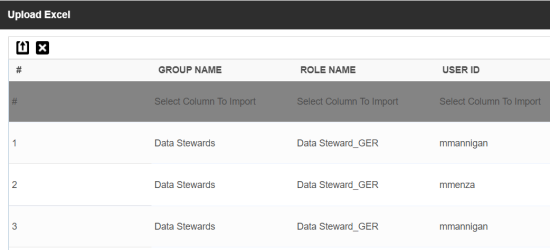
- Double-click the Select Column To Import cell in the required column.
- Select the appropriate option.
- Click
 .
. - Click Save.
The Upload Excel page appears.
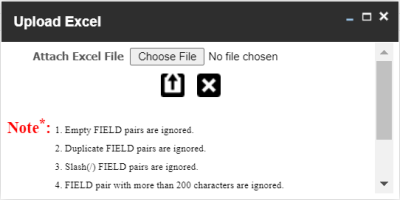
The Upload Excel page appears. It displays the data in the MS Excel file.
The available options appear.
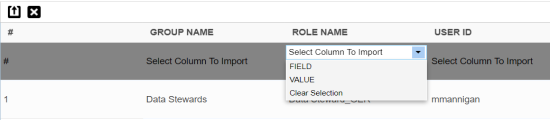
Field corresponds to options and Value corresponds to value of an option. You can import multiple columns. Use Clear Selection to undo the selection.
The <UI_Element> Options page appears. It displays the imported columns. You can delete a row that is not required. To delete rows, click a row and then click Delete.
The option values appear in the UI element under the Configure Form section.